Put an animated pet on your TikTok Live
A pet that reacts to gifts, follows and chat commands, as an OBS browser source. Free presets, your own pet from a photo, and reactions you describe.
 BoTik Team10 min read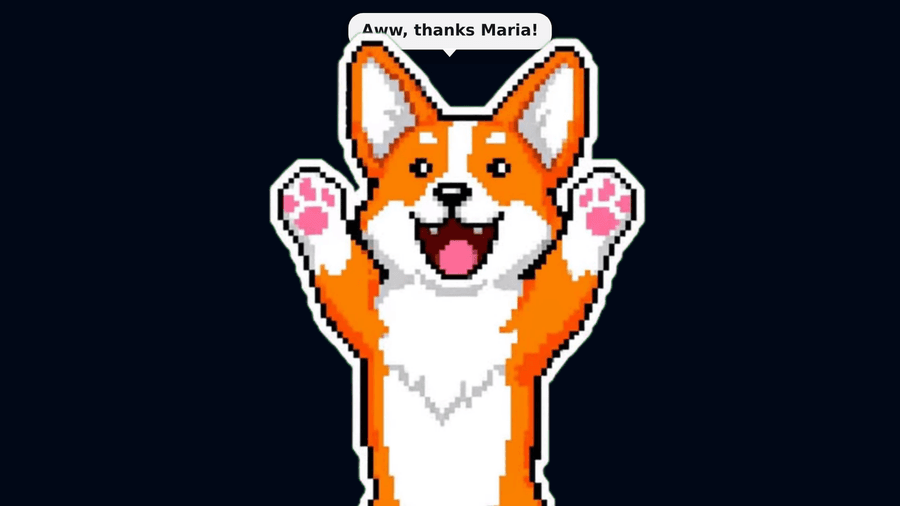
Chat scrolls past. A gift arrives, the notification slides away, and unless you happen to be looking at the right corner of the screen, nothing on stream acknowledges that someone just spent money on you.
A BoTik Pet is a small animated character that lives in your scene and answers for you. Someone sends a Rose and it hugs the air. Someone follows and it waves. A viewer types !pet and it leans into the invisible hand. It is one transparent browser source, it works in OBS, Streamlabs and TikTok LIVE Studio, and the free pets cost nothing.
What happens when someone sends a gift
TikTok Live
a viewer sends a gift
BoTik
decides what the pet does
Your pet’s stage
a web page at a secret URL
OBS Browser Source
composited into your scene
Two minutes to a pet on stream
Open Pets and pick one.
The preset pets are free for everyone, with no credits and no Premium. Press Put on stage and it is live immediately — you can change your mind as often as you like.
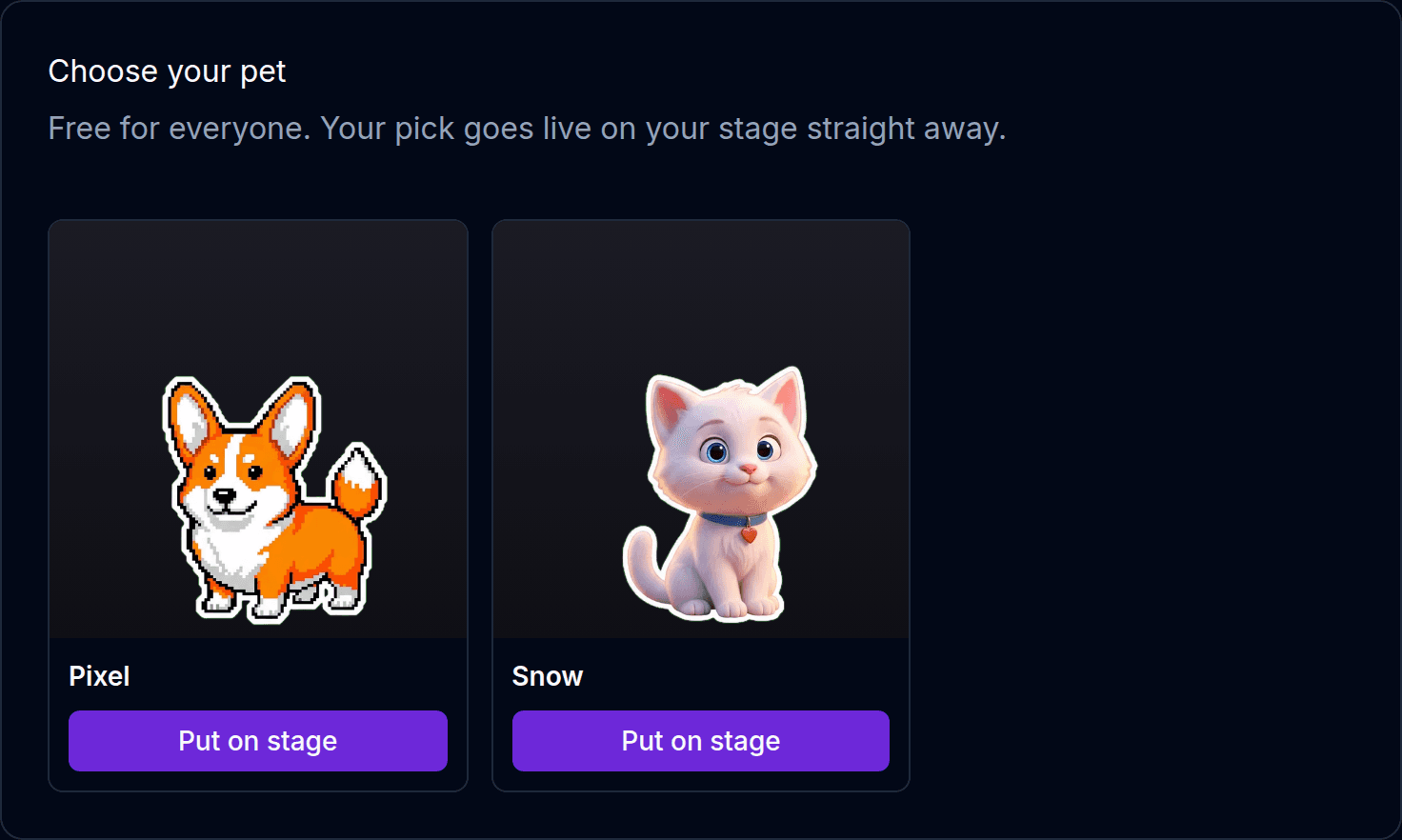
Free presets. Your pick goes on the stage straight away. Copy your stage URL.
One URL serves every pet you own, so switching pets later never means touching OBS again. Use the Copy button rather than selecting the text — the token is long, and a truncated URL fails silently with a blank source.
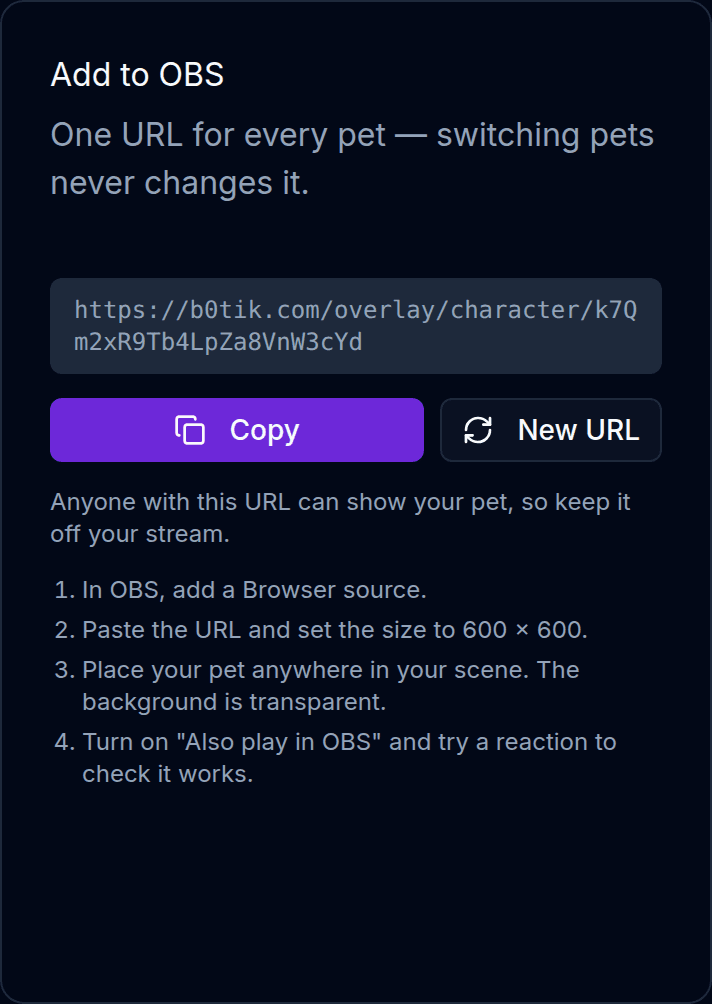
The card also spells out the OBS steps, so you do not have to come back here for them. Add a Browser source in OBS.
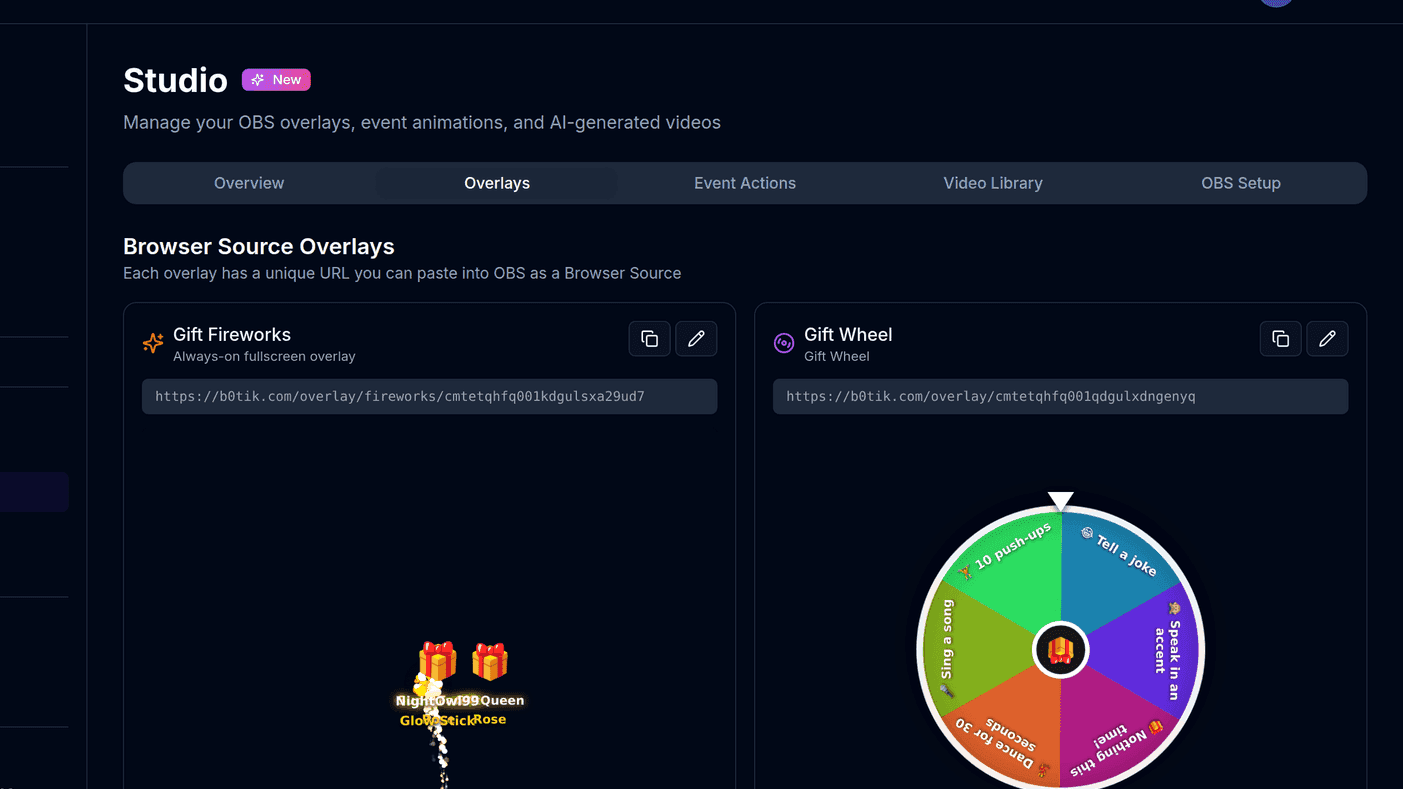
Paste the URL, set the size to 600 × 600, and drag the pet wherever you want it. The background is transparent, so it sits over your camera or your game without a box around it.
Test it before you go live.
Turn on Also play in OBS in the Stage preview and press a reaction. The same event goes to the preview and to your browser source, which is how you confirm the source works without starting a stream.

Every reaction has a test button. The preview is muted by default — the stream’s copy is the one that should be heard.
Treat the URL like a password
Anyone who has it can open your pet’s stage. Keep it off your stream and out of public Discords. If it does leak, New URL issues a fresh one and disconnects the old one on the spot.
What your pet reacts to
Out of the box your pet already answers the events that matter. Gifts are tiered by what the whole streak was worth, so a run of Roses climbs into the bigger reaction on its own.
| When this happens | Your pet | Default cooldown |
|---|---|---|
| A gift worth up to 9 diamonds | Hearts and a happy sound | None |
| 10 – 299 diamonds | Dances, stars | None |
| 300 diamonds or more | Jumps up and celebrates, confetti | None |
| Someone follows | Waves and greets them | 3 s |
| Someone shares your live | Hearts | 5 s |
| A new subscriber | Dances | None |
| Every 500 likes | Hearts | None |
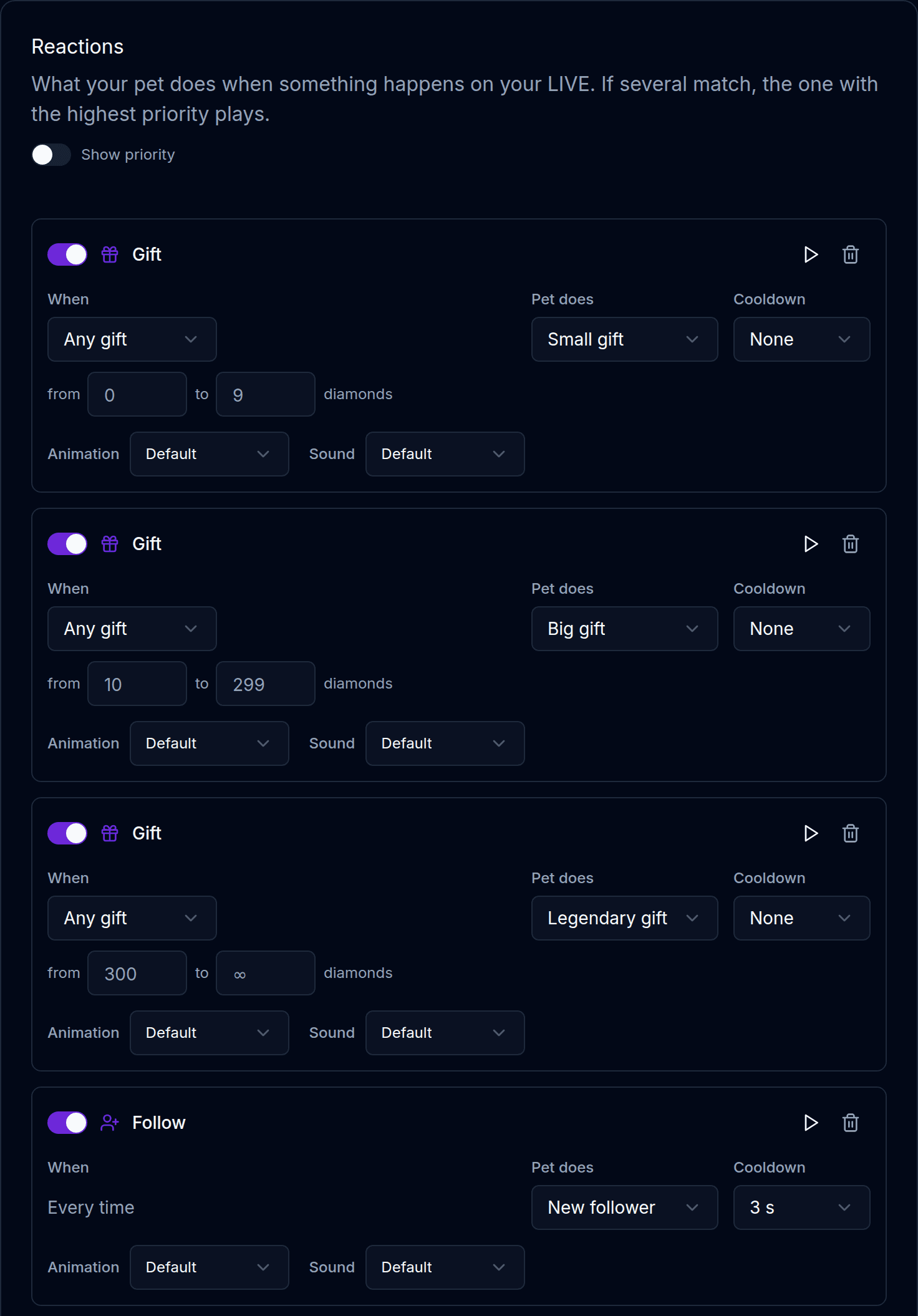
You can add rules of your own, point one at a specific gift rather than a tier, greet named VIPs by handle, and set a cooldown so a rose flood does not turn your pet into a strobe light.
Letting chat play with it
Four chat commands are on by default. They are the cheapest engagement you will ever add, because they cost the viewer nothing and give them something to do between gifts.
!pet(or!pat) — the pet leans into it and wiggles.!dance— a little dance.!feed(or!treat) — it eats a treat.!hi(or!hello,!hey) — it waves back.
The per-viewer cooldown is the important one
Each command has a limit per person on top of the global one — 30 seconds for !pet, a minute for !dance and !feed. Without it, one viewer holds your pet for the whole stream while everyone else watches. Raise it if chat is busy; do not set it to zero.
Giving it a voice of its own
Your pet makes natural sounds — meows, barks, chirps — picked to match its species. There are several takes of each, chosen at random, so it never sounds like a soundboard.
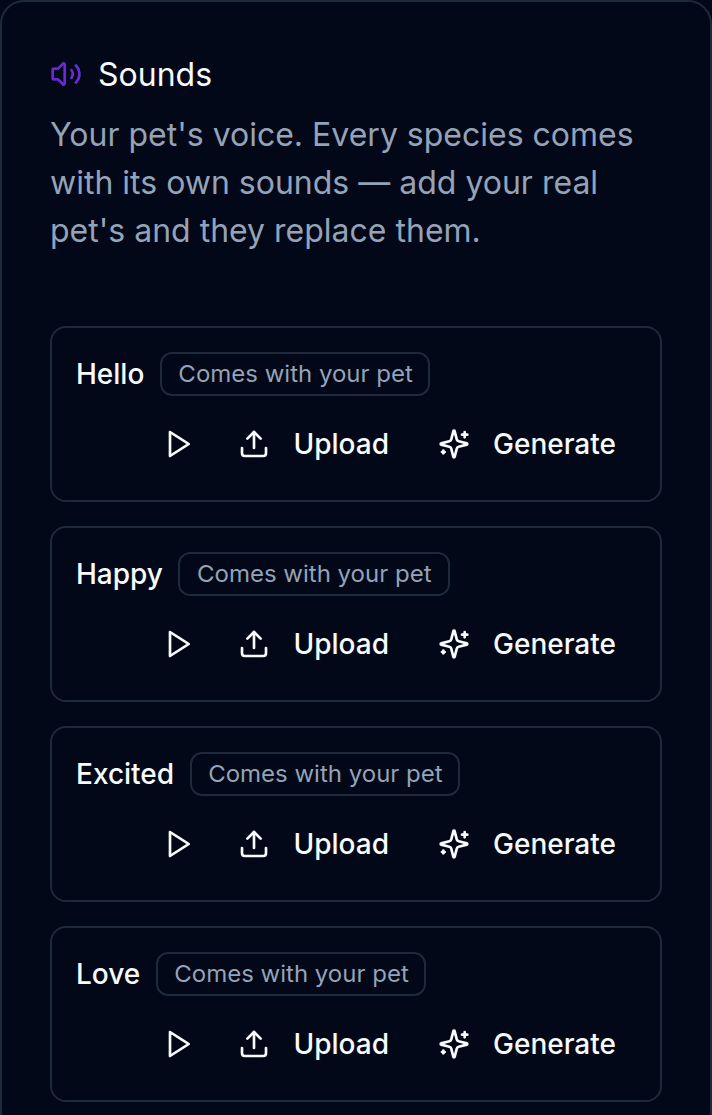
The part people actually love: record your own animal. Upload your real cat’s meow and it replaces the kit on every pet you use, on every stream. Your sounds follow you, not the pet. You can also generate one with AI on your own ElevenLabs key, and keep up to three takes per moment.
The sound comes out of the browser source
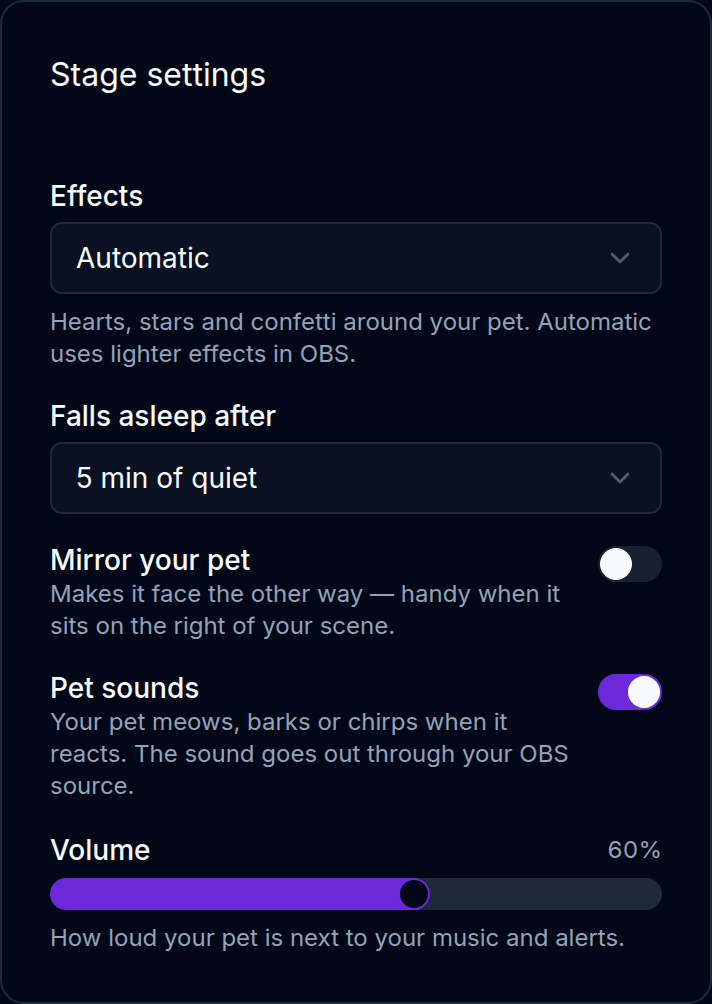
It is your OBS source that plays it, so it reaches your stream the same way any other browser source audio does. If you cannot hear it, check that the source is not muted in the Audio Mixer and that Control audio via OBS is on. The Volume slider on the Stage settings card sets how loud the pet sits next to your music and alerts.
Letting it talk (optional)
Talking is off by default, on purpose — not every streamer wants a chatty pet, and a voice on top of your own is a real choice rather than a nice extra. Turn it on and your pet thanks people out loud in your BoTik voice: gifts, follows, shares and new subscribers.
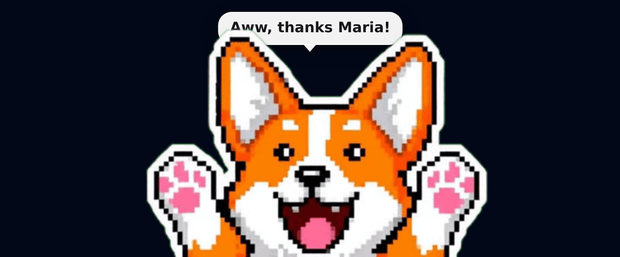
Lines go through the same queue as your chat messages, so nothing talks over anything else, and there is a gap between them so your pet never becomes a machine gun. It only ever thanks people — it will not ask anyone for gifts, and that is not a setting.
A pet that answers your viewers
This is the one that changes the room. A viewer types !ask do you like naps? and your pet answers them out loud, in character, in your language.
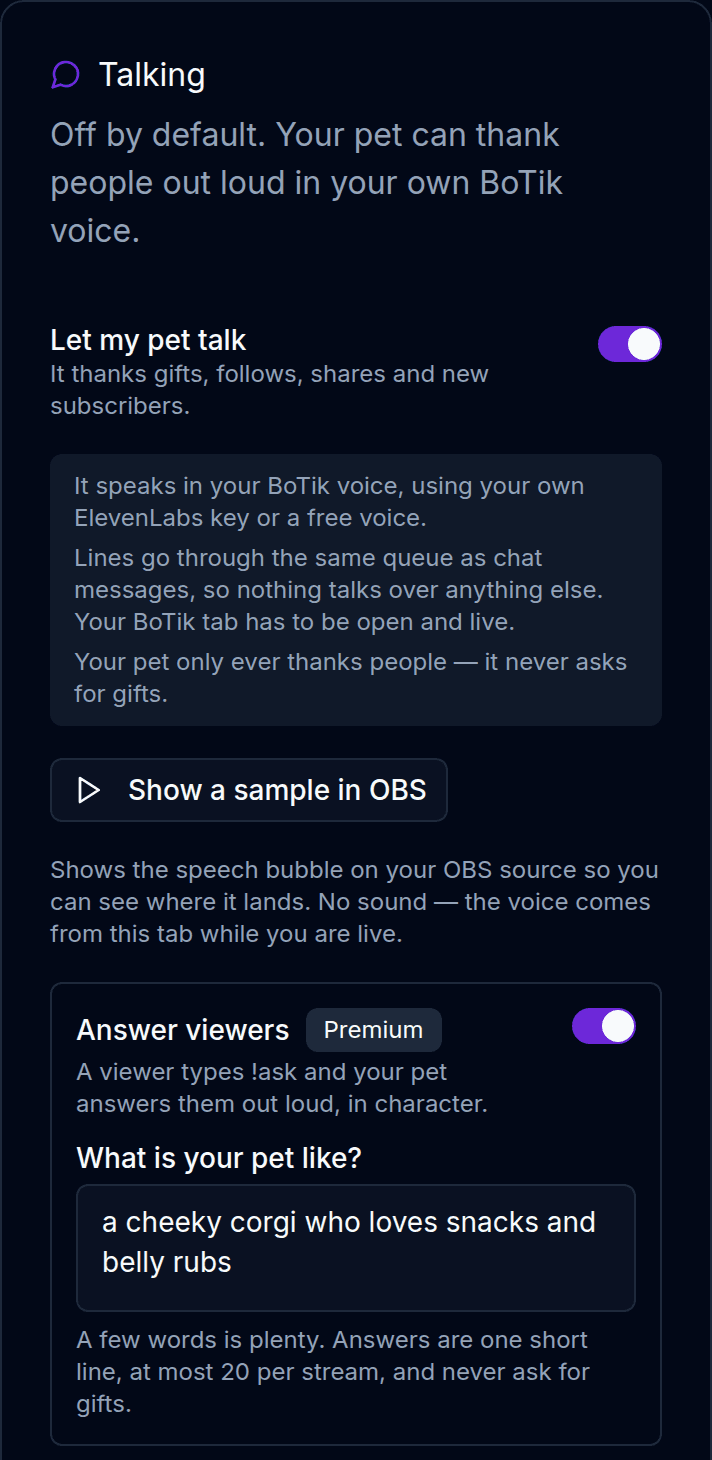
You describe your pet in a few words — "a cheeky corgi who loves snacks and belly rubs" — and that is the character it answers in. Replies are one short line, capped at 20 per stream, with 20 seconds between them and five minutes per viewer, so it stays a treat rather than a takeover.
Give it an attitude, not a biography
Two or three traits beat a paragraph. "Grumpy, sleepy, obsessed with snacks" produces sharper answers than a backstory, because every reply has to fit in one line anyway.
Note
Answering is the one pet feature that needs Premium. Everything above — the pet, the reactions, the sounds, the commands, the talking — works on a free account.
Your own pet, from your own photo
The presets are good. Your own animal is better. If you have made an AI avatar — from a photo of your actual cat, or from a description — you can bring that exact character to life as an animated pet.
Make an avatar first.
Any READY style of any avatar works. Pixel art, anime, 3D — the pet keeps the style you chose, so it matches the art you already use.
Press Create a pet and pick it.
Name it, confirm, and leave it. It costs 500 BoTik Credits and takes about ten minutes.
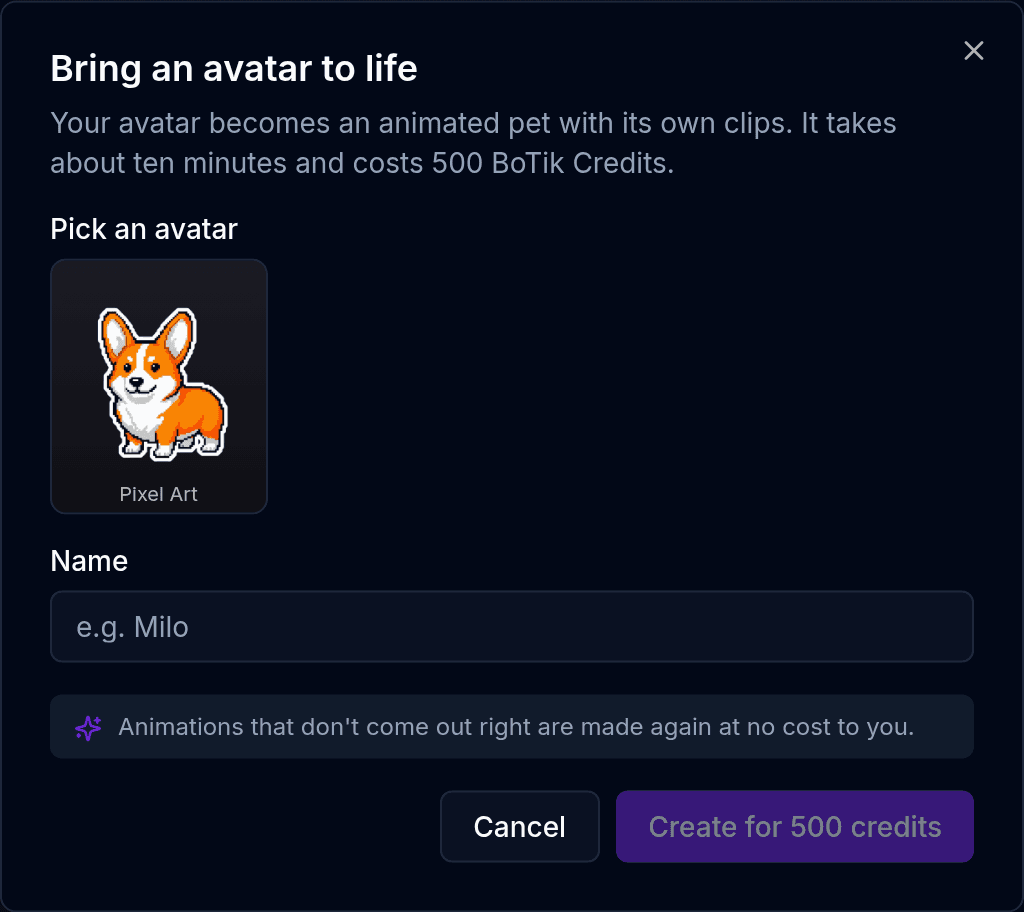
Come back to a pet that can do everything the presets can.
Behind the scenes it draws your character in twelve poses and films ten animations between them — idle, wave, heart, dance, celebrate, three for sleeping, and one for talking. Animations that come out wrong are re-shot at our cost, not yours.
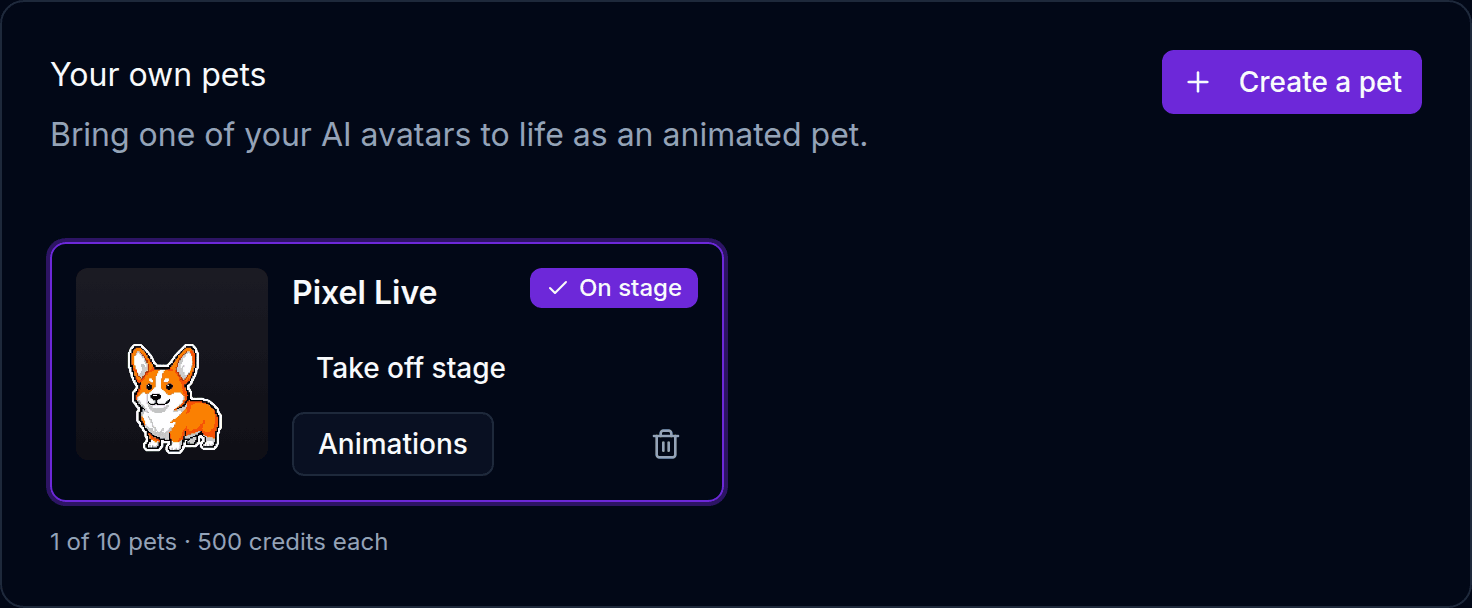
Note
A mostly bright-green avatar is refused before you are charged — green is what the animation backdrop is keyed on, so a green pet would be half-erased. Pick another style or another avatar.
Teaching it new tricks
A finished pet can learn more. Open Animations on your pet and there is a library of six extra reactions, each filmed from the poses your pet already has, so it is unmistakably the same character.
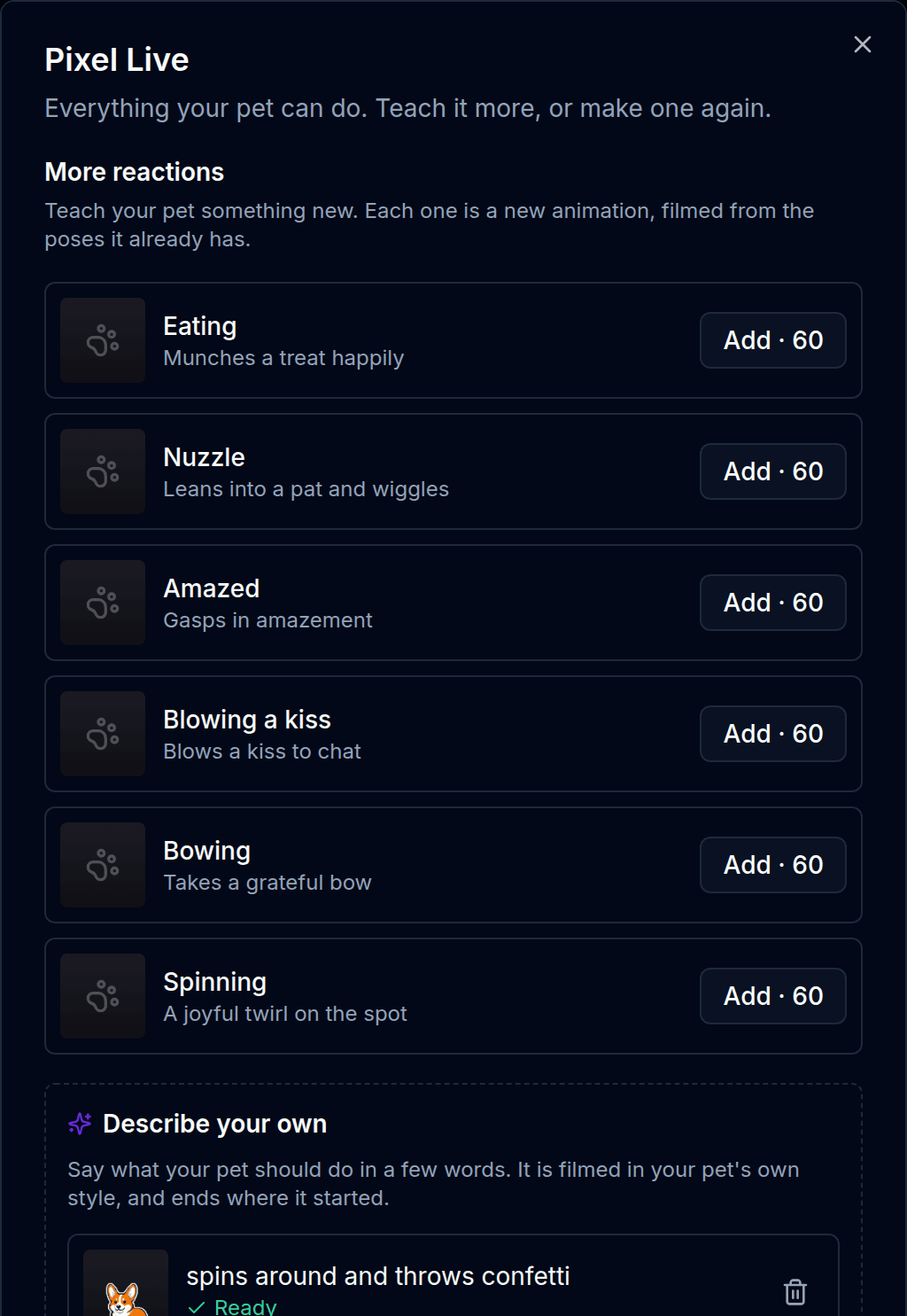
!feed and !pet play.And then the part with no ceiling: describe your own. Write what your pet should do in a few words, and it gets filmed in your pet’s style, starting and ending exactly where its idle animation does so it drops into the stream without a jump.
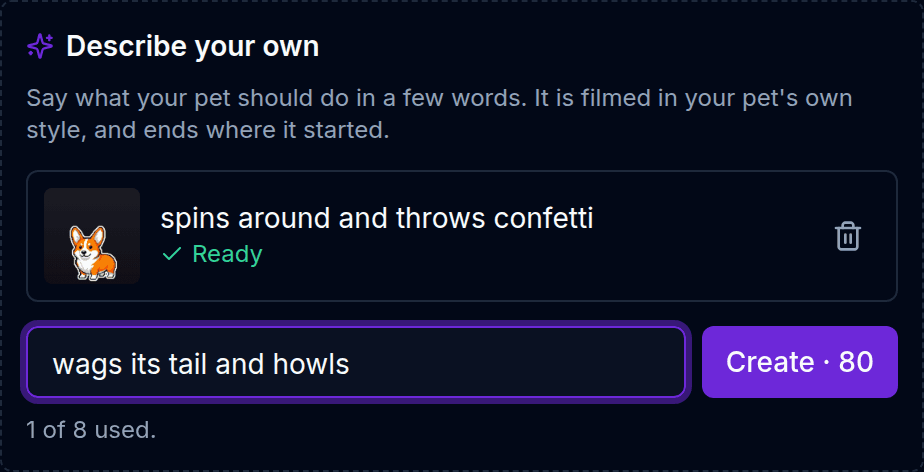
Anything you add shows up in the Animation dropdown on every rule, so you can point it at exactly the moment you want — your confetti spin for a Galaxy, a grateful bow for every new subscriber. A pet that does not have that animation simply reacts the way it always did, so your rules keep working when you switch pets.
What it costs
| Credits | Notes | |
|---|---|---|
| A preset pet | Free | For everyone, no Premium |
| Your own animated pet | 500 | From one of your AI avatars |
| A library reaction | 60 | Six to choose from |
| A reaction you describe | 80 | Up to eight per pet |
| Re-shooting one animation | 50 | Free if it failed |
Answering viewers with !ask | — | Premium |
BoTik Credits are worth a cent each, so a custom pet is $5 of credit. Premium grants 500 credits every month — which is exactly one custom pet a month, or eight library reactions, or six of your own — and it is what unlocks !ask. If you are going to make more than one pet, or you want your pet answering chat, Premium is the cheaper way in. Credits also come from referrals if you would rather not pay for them.
If something is not working
- The source is blank. The URL was truncated, or the pet was taken off the stage. Re-copy it with the Copy button and check the Pets page still shows one pet as *On stage*.
- Nothing reacts while you are live. BoTik has to be connected to your TikTok Live — press Go Live in BoTik after you start streaming. Test events work either way, which is how you tell the two apart.
- No sound. Check the browser source is not muted in the OBS Audio Mixer, that Pet sounds is on, and that the volume slider is not at zero.
- The pet is a still image. A browser that cannot play transparent video falls back to still poses. In OBS this does not happen; in Safari it does.
- It fell asleep. That is the inactivity timer — five minutes of nothing by default. Change it or switch it off in Stage settings.
That is the whole feature. Put a free pet on stage first and watch what chat does with !pet — then decide whether it is worth giving them your own animal to play with. If you have not set up a browser source before, the overlays guide walks through it in more detail.