How to use BoTik overlays on your TikTok Live
Add gift wheels, leaderboards, goal banners and alerts to your stream as OBS browser sources — what each overlay does and the settings that matter.
 BoTik Team5 min read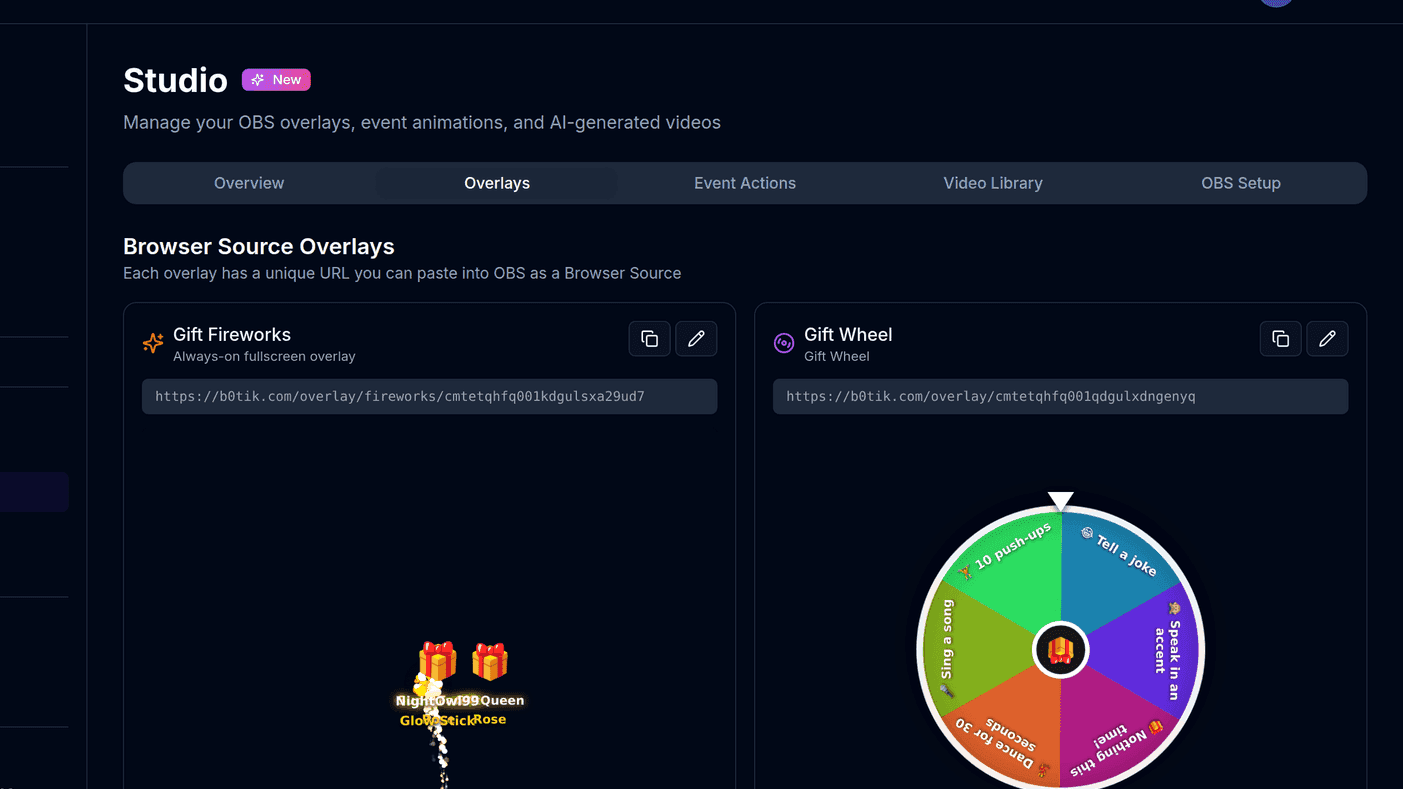
An overlay is the part of your stream viewers actually watch. A leaderboard that updates when someone sends a gift, a wheel that spins on a Rose, a goal bar creeping toward a target — these turn passive watching into something with stakes, and they do it without you having to narrate every event.
BoTik ships sixteen of them. Each is a normal web page at its own secret URL, which means adding one to your stream is a two-minute job in OBS and nothing has to be installed.
How an overlay actually reaches your stream
What happens when a viewer sends a gift
TikTok Live
a viewer sends a gift
BoTik
connected to your chat
Overlay URL
a web page, updated live
OBS Browser Source
composited into your scene
Two things follow from that. First, the overlay only shows activity while BoTik is connected to your live — press Go Live in BoTik after you start streaming on TikTok. Second, the URL is a secret: anyone who has it can watch your overlay. Do not put it on screen, and do not paste it into a public Discord.
Adding your first overlay
Open Studio → Overlays
Every overlay already exists on your account — there is nothing to create. Each card shows a preview of the widget and the URL that renders it.
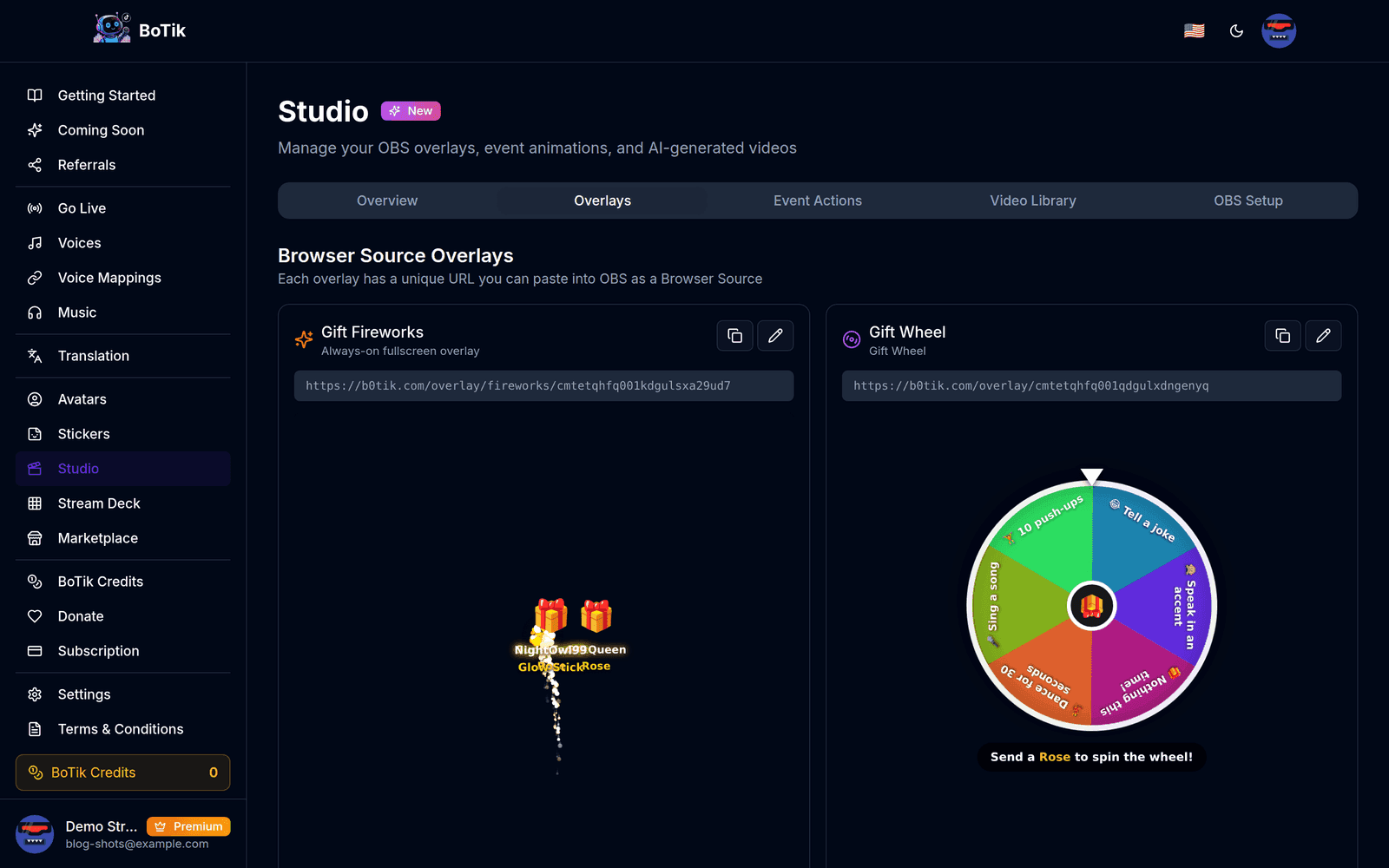
Studio → Overlays. Each card carries its own URL and a live preview. Copy the overlay URL
Use the copy button on the card rather than selecting the text by hand — the tokens are long and a truncated URL fails silently with a blank browser source.
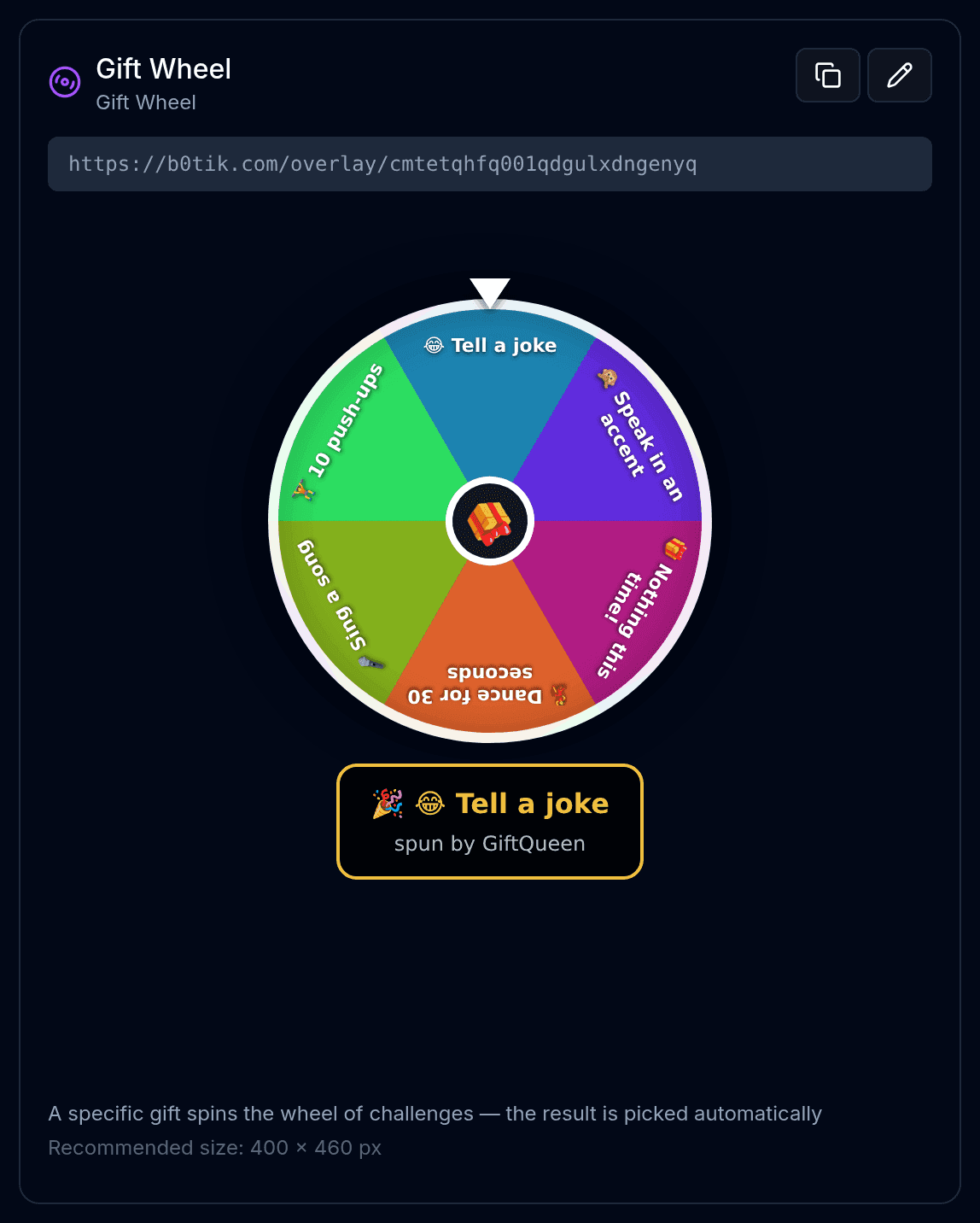
The copy icon takes the whole URL; the pencil opens that overlay’s appearance settings. In OBS, add a Browser source
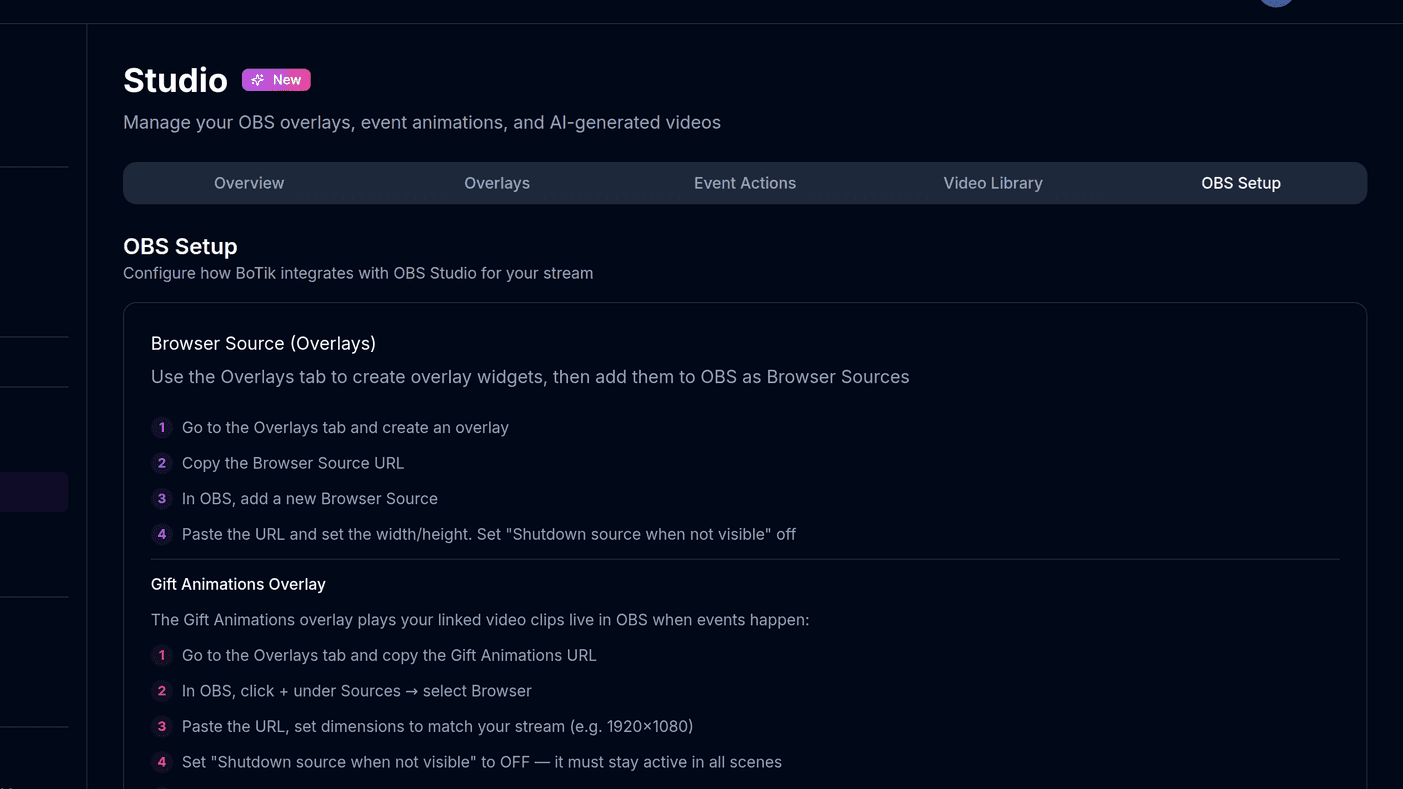
Click + under Sources → Browser → give it a name → paste the URL into the URL field.
Set the width and height
Use the size shown on the card. Overlays are designed at a fixed size and scaling them in OBS will blur the text — resize the source, not the canvas, only if you must.
Turn OFF “Shutdown source when not visible”
This is the single most common setup mistake. With it on, OBS kills the page whenever you switch scenes, the overlay loses its connection, and your leaderboard resets mid-stream.
Gift Animations goes at the top
The Gift Animations and Gift Fireworks overlays are always-on fullscreen layers. Put them at the top of the source list in every scene, or your camera and game capture will cover them.
Which overlay to add first
Adding all sixteen at once is a mistake — the screen fills up and none of them get noticed. Start with one that gives viewers a reason to interact, then add a second only once the first is part of your routine.
| Overlay | Size | What it is for |
|---|---|---|
| Gift Wheel | 400 × 460 | A gift spins a wheel of dares. The highest-engagement overlay for most streamers. |
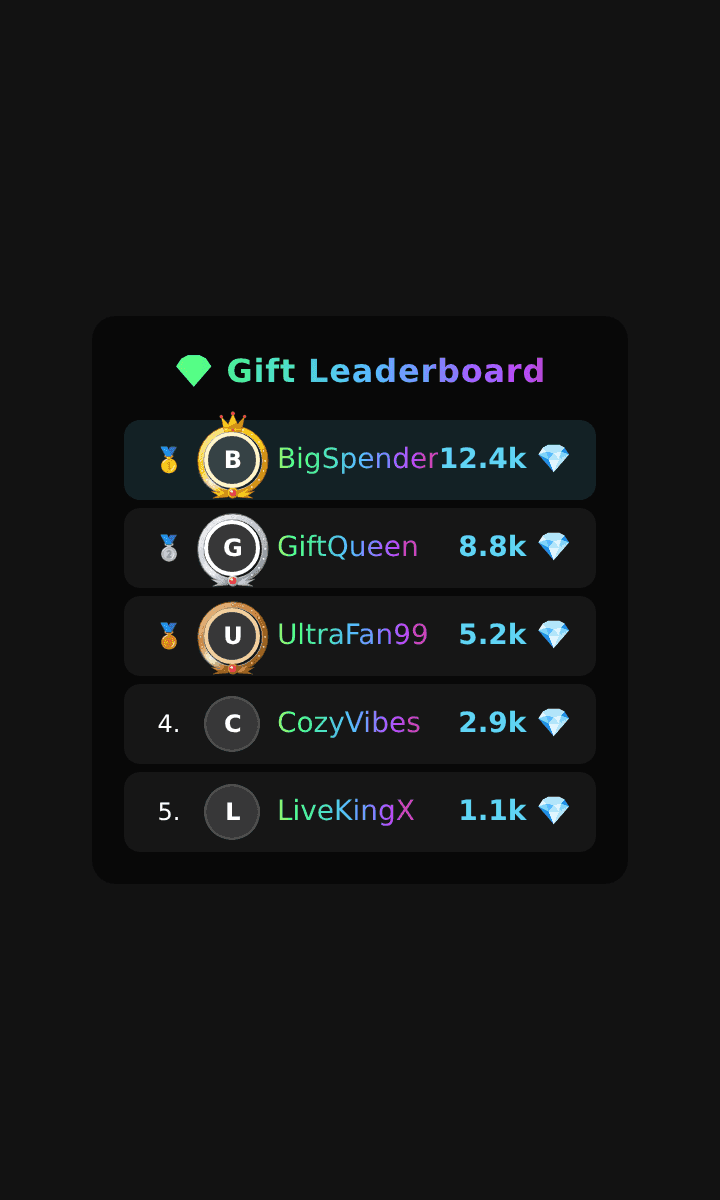
| Gift Leaderboard | 360 × 600 | Top gifters this session. Turns generosity into a visible competition. |
| Tap Tap Leaderboard | 360 × 600 | Top likers. Rewards the viewers who cannot spend money. |
| Goal Banner | 500 × 100 | A progress bar toward a like or gift target, with a celebration when it lands. |
| Now Playing | 400 × 90 | The track currently playing, for music streams. |
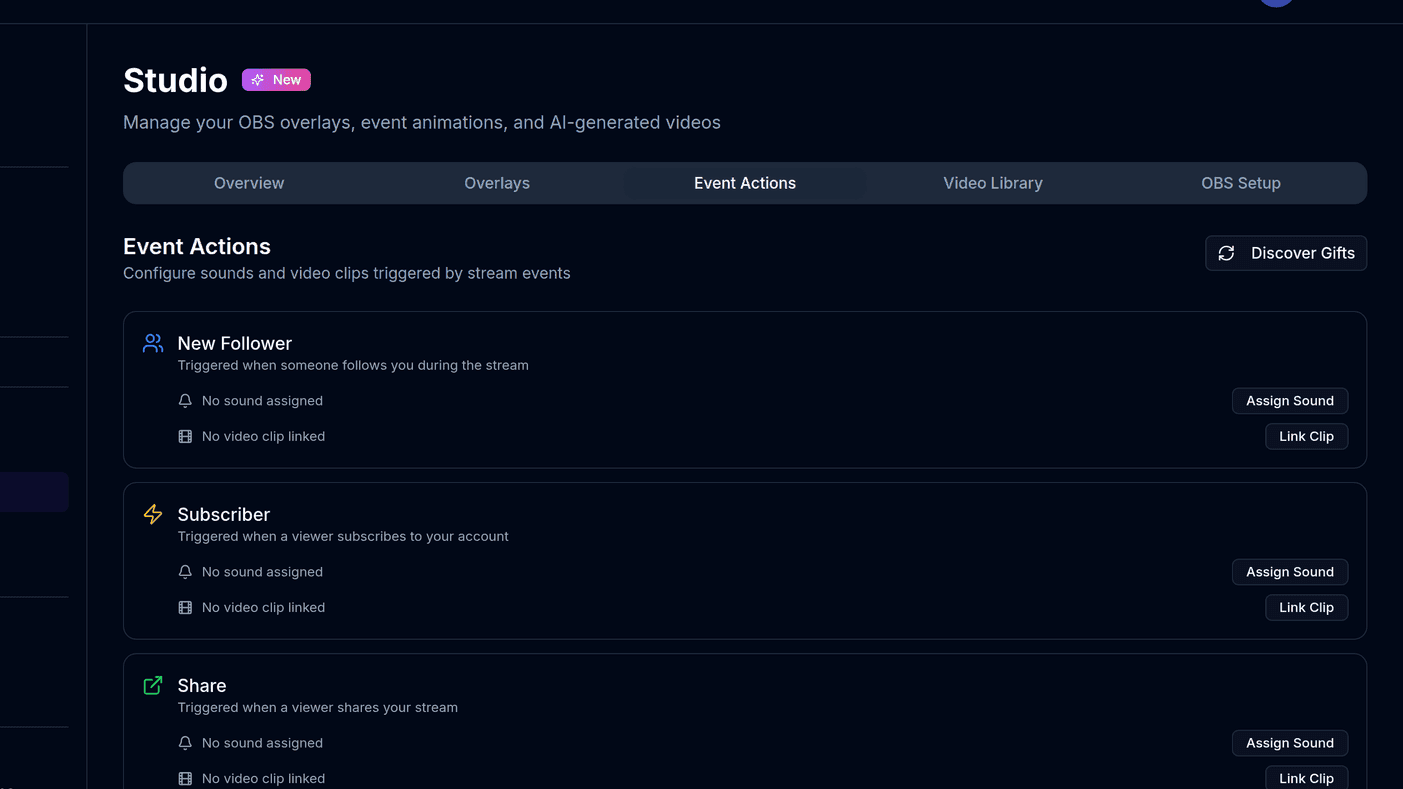
| Alert Box | 480 × 180 | Follows, subscribes, shares and gifts, each toggleable. |
| Session Stats | 620 × 80 | A thin strip of live numbers — viewers, likes, gifts. |
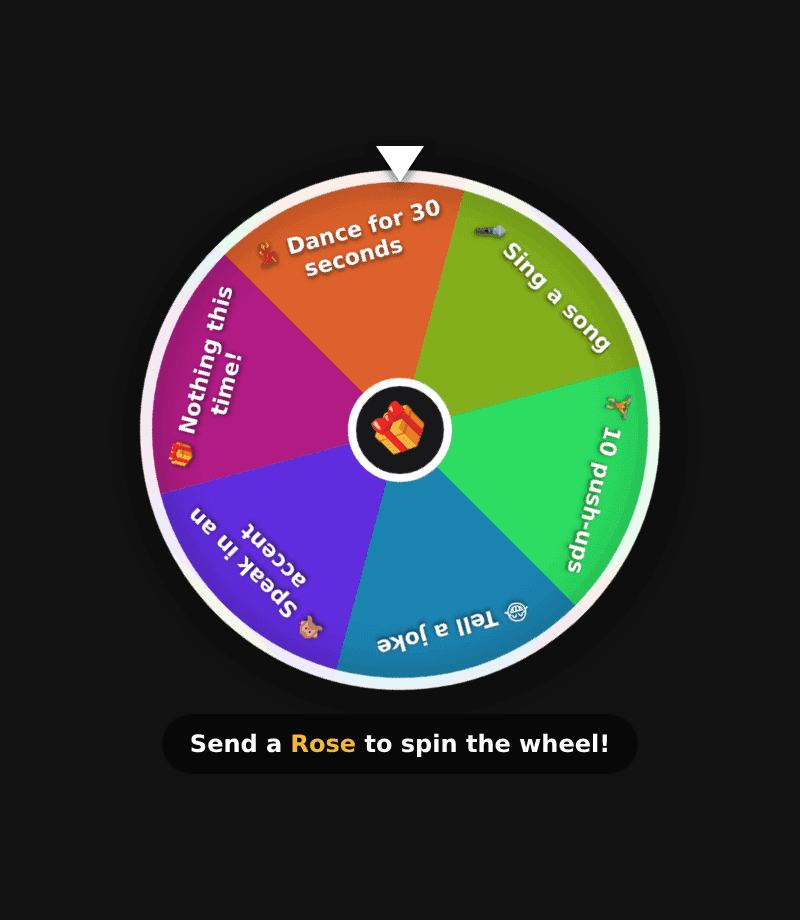
The wheel works because the reward is immediate and the cost is low. Keep the segments short, make at least one of them funny, and leave one that does nothing — the near-miss is what makes people spin again.
Making them look like your channel
The pencil icon on any card opens its appearance settings: font family, font size, accent colour, background opacity, avatar frame, medal style and row animation. The goal banner adds a bar gradient, a metric to track, and a celebrate-on-goal toggle.
Tip
Set background opacity to zero and the overlay floats directly on your scene with no panel behind it. That reads as part of your layout rather than a widget bolted onto it — but check the text is still legible against your busiest background before you commit.
When an overlay stays blank
- Nothing appears at all. The URL was truncated on paste. Re-copy it with the button and check it ends in a long random string.
- It worked, then went blank after a scene change. "Shutdown source when not visible" is still on.
- The page loads but never updates. BoTik is not connected to your live. Press Go Live in BoTik after starting your TikTok stream.
- Text is fuzzy. The source is scaled in OBS. Delete it, re-add it at the recommended size, and move it instead of resizing.
- It is behind your camera. Drag the source up the list. OBS draws from the bottom up.
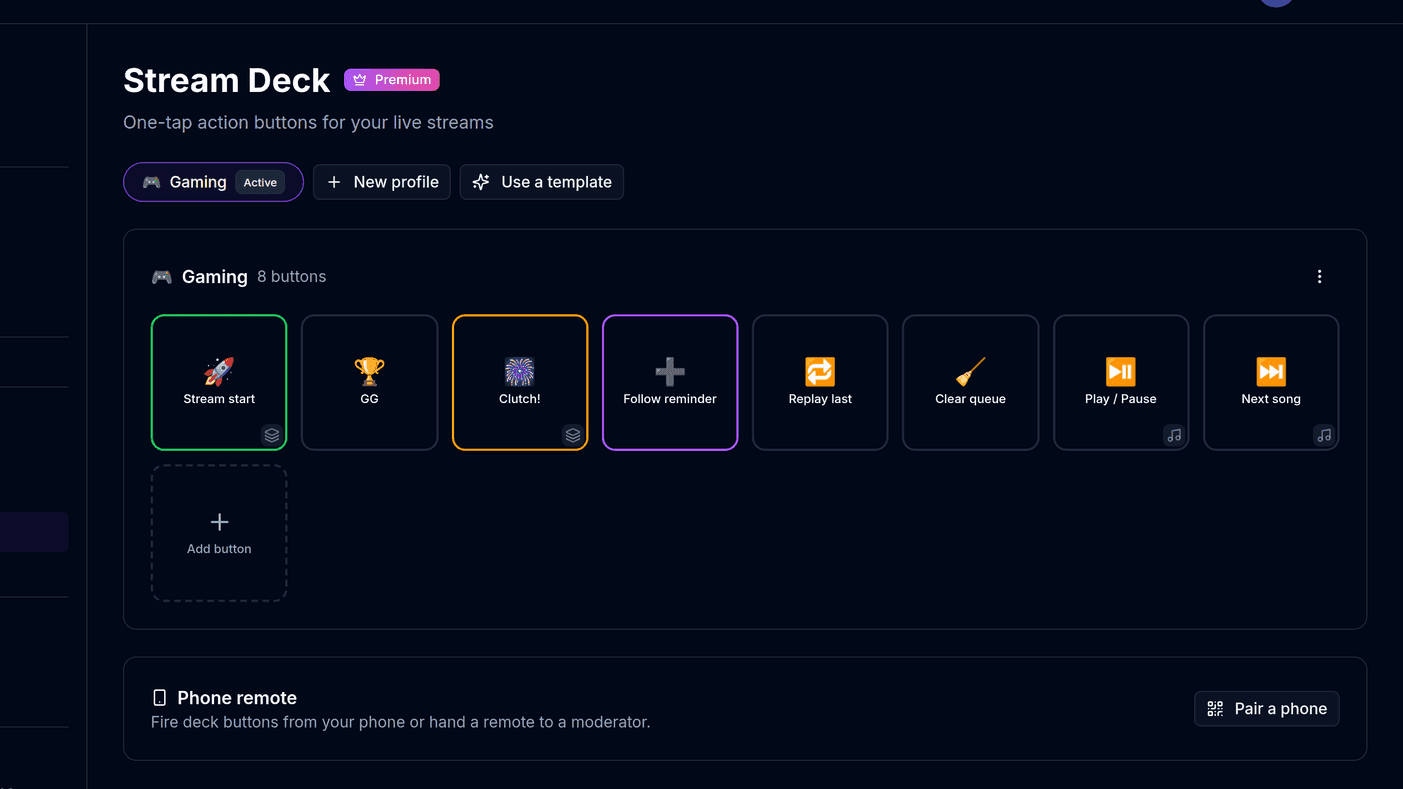
Once overlays are on screen, the next thing worth wiring up is the Stream Deck — it can fire a firework, reset a counter or start a timer on the same overlays without you touching the browser. And if you have not connected OBS yet, start with connecting OBS to BoTik.