Music on stream: the player, chat commands and music moderators
Connect Spotify or YouTube, let chat request songs with !queue, and hand the controls to a short list of trusted viewers without losing the room.
 BoTik Team3 min read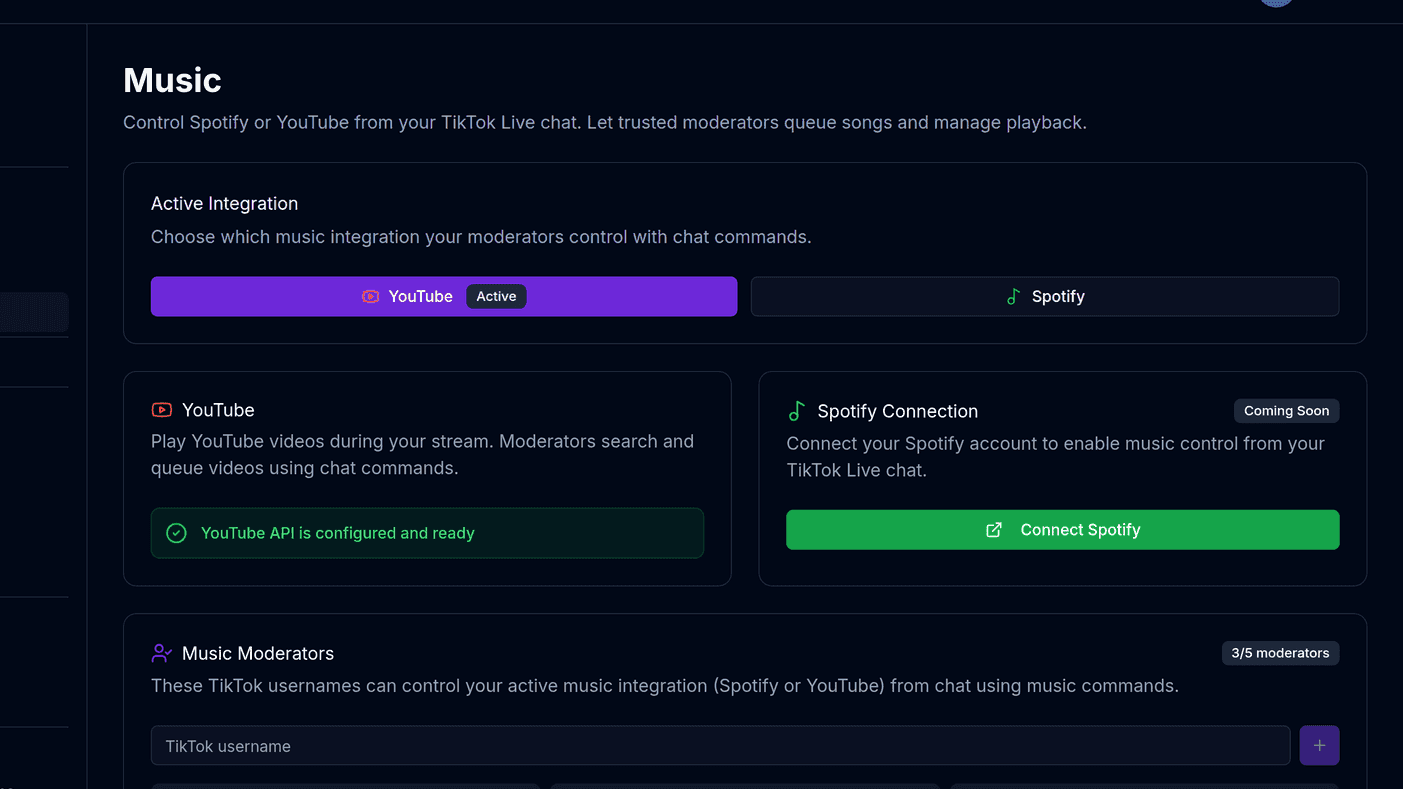
Letting chat pick the music is one of the cheapest ways to make a stream feel collaborative. It is also one of the fastest ways to lose control of it, which is why the useful version of this feature is not the player — it is the moderator list.
Note
Music is a Premium feature. YouTube needs nothing from you; Spotify needs you to connect your account.
Connecting a provider
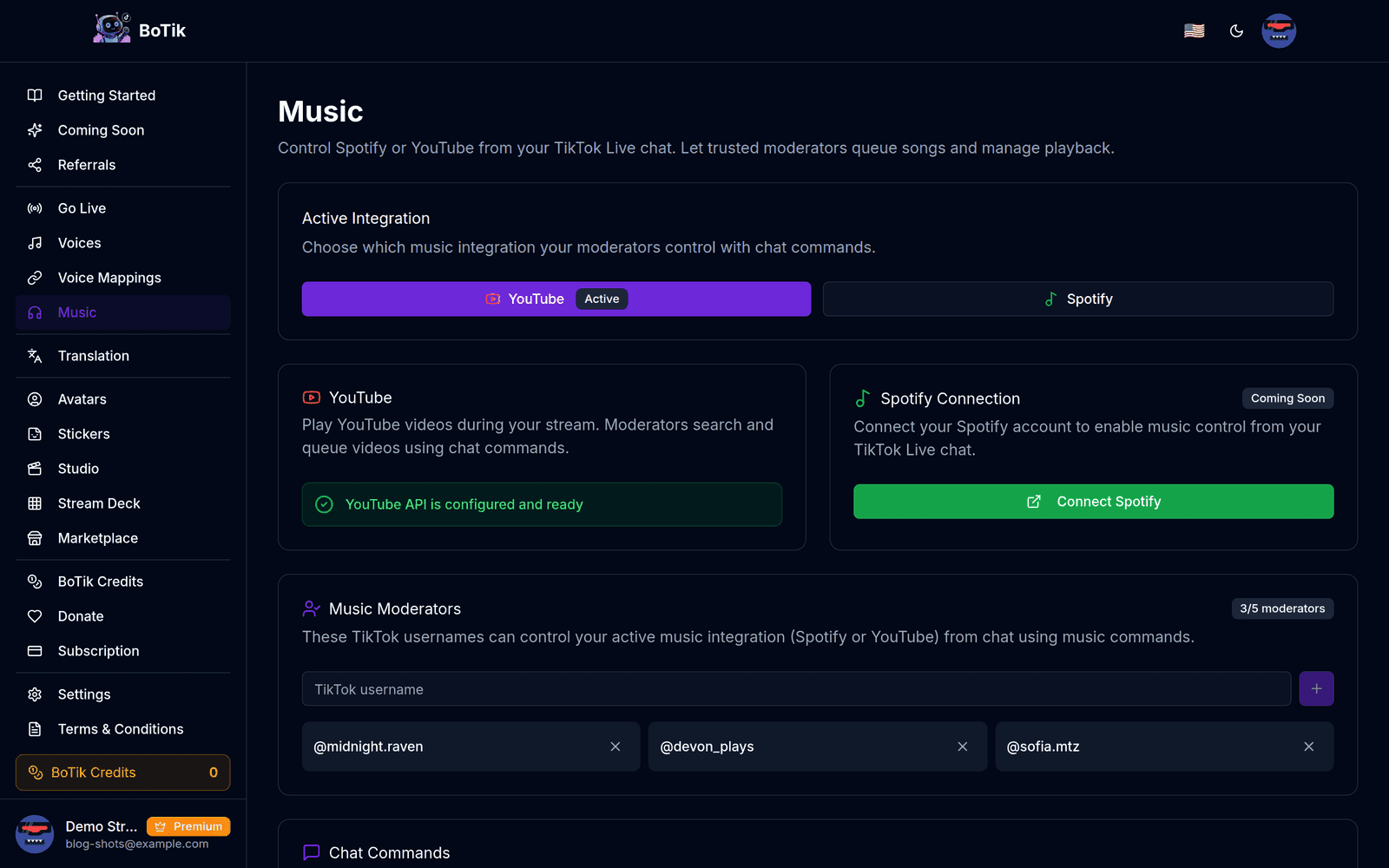
BoTik supports Spotify and YouTube. The Active Integration toggle decides which one chat commands drive — you can have both available and still only one answering !play.
| Spotify | YouTube | |
|---|---|---|
| Setup | Connect your account via Spotify login | Nothing to connect |
| Account needed | Yes, and Premium on Spotify’s side for playback control | No |
| Catalogue | Licensed music | Anything on YouTube, including remixes and covers |
!shuffle | Supported | Not supported |
!clear | Not supported | Supported |
Tip
YouTube is the lower-friction choice for a first stream — there is no account to link, so you can test whether chat engages with requests at all before wiring up Spotify.
Music moderators: the part that matters
By default nobody in chat can control your music. You nominate up to five TikTok usernames as music moderators, and only they can run the commands.
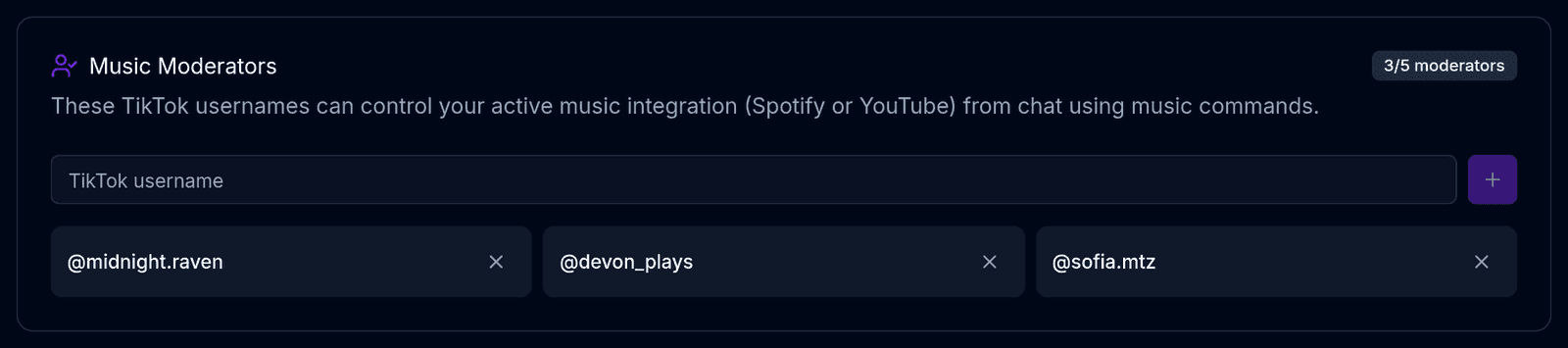
Five is a low ceiling and that is the point. Music control is the most abusable permission you can hand out on a live stream — one bad actor can skip every track, queue something you cannot play on stream, or simply take the room somewhere you did not want to go. A cap forces you to pick people you would trust with the aux cable in real life.
Watch out
Usernames are matched exactly, without the @. A moderator whose commands are being ignored has almost always been added under a display name rather than their actual TikTok username.
The chat commands
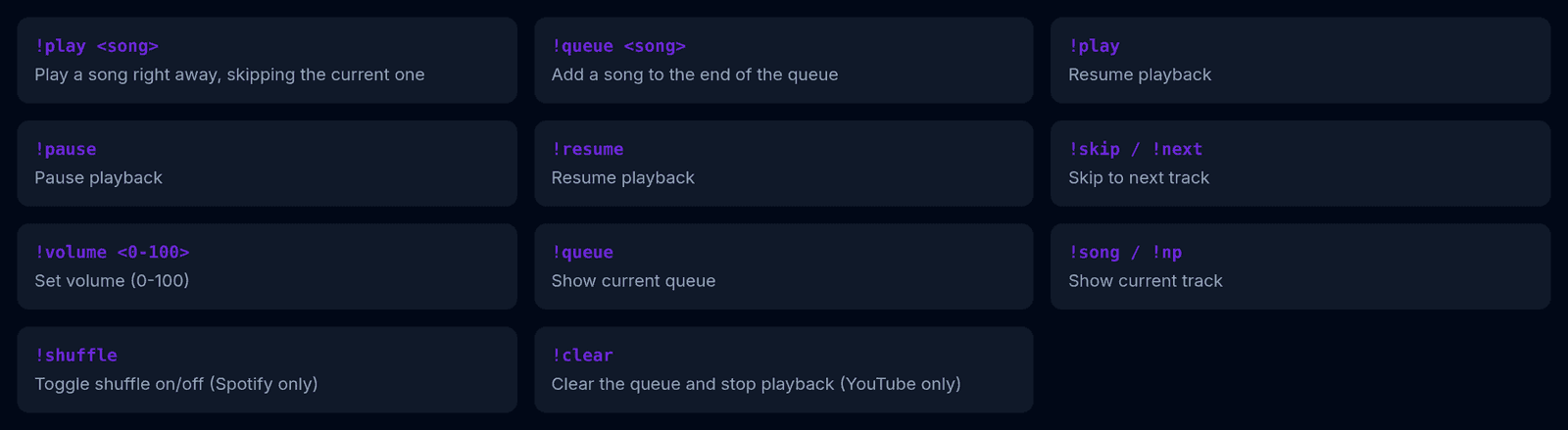
!play <song>     play now, skipping the current track
!queue <song>    add to the end of the queue
!play            resume
!pause           pause
!resume          resume
!skip  /  !next  skip the current track
!volume <0-100>  set volume
!queue           show what is coming up
!song  /  !np    show what is playing
!shuffle         shuffle (Spotify only)
!clear           clear the queue (YouTube only)
Tip
Teach your moderators !queue and discourage !play. !queue appends; !play cuts off whatever is playing right now. The difference between a collaborative playlist and a fight over the speakers is which of those two words your regulars use.
Putting it on screen
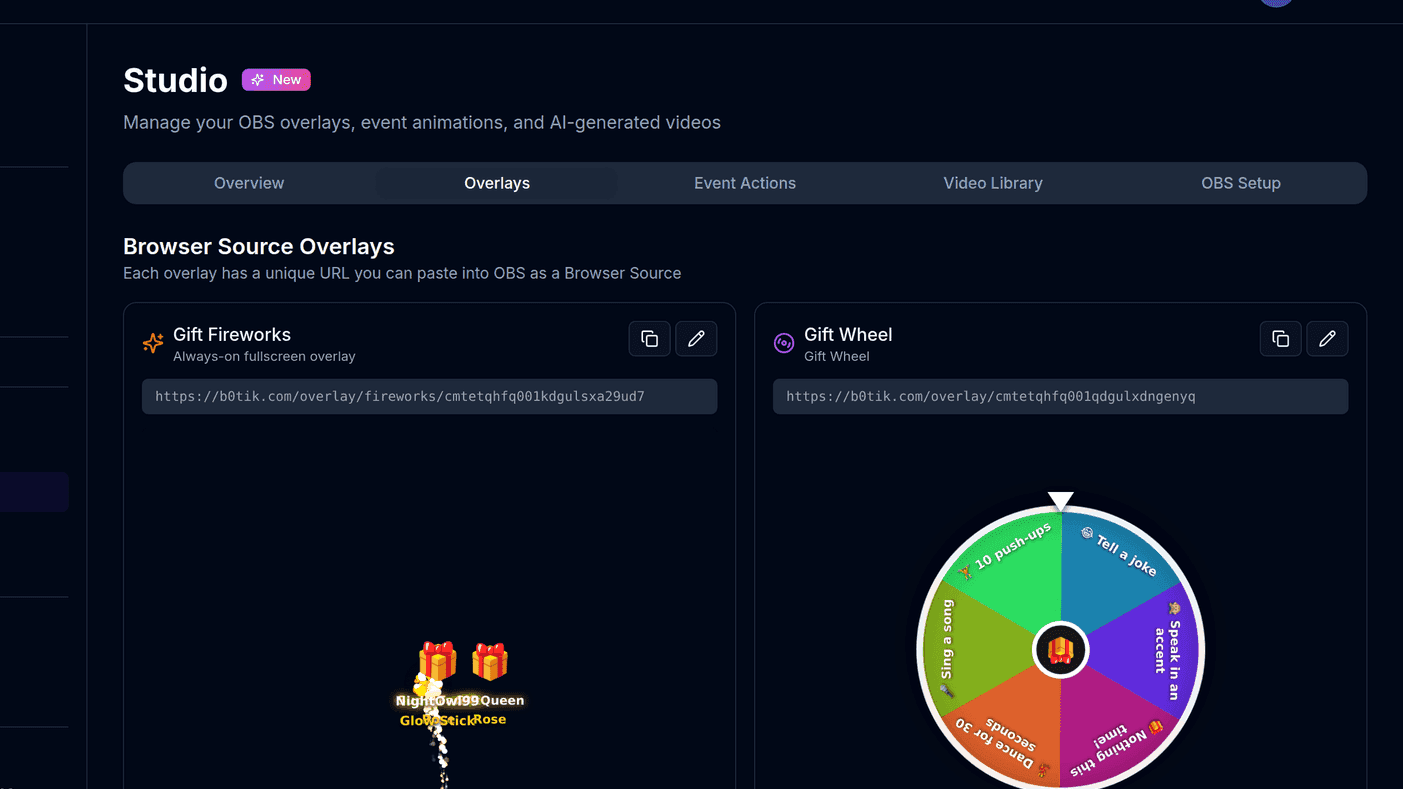
Two overlays pair with the player: Now Playing (400 × 90) shows the current track, and Music Queue (340 × 300) shows what is coming. Both are worth adding — a visible queue is what stops chat asking "did my song go through" every ninety seconds.

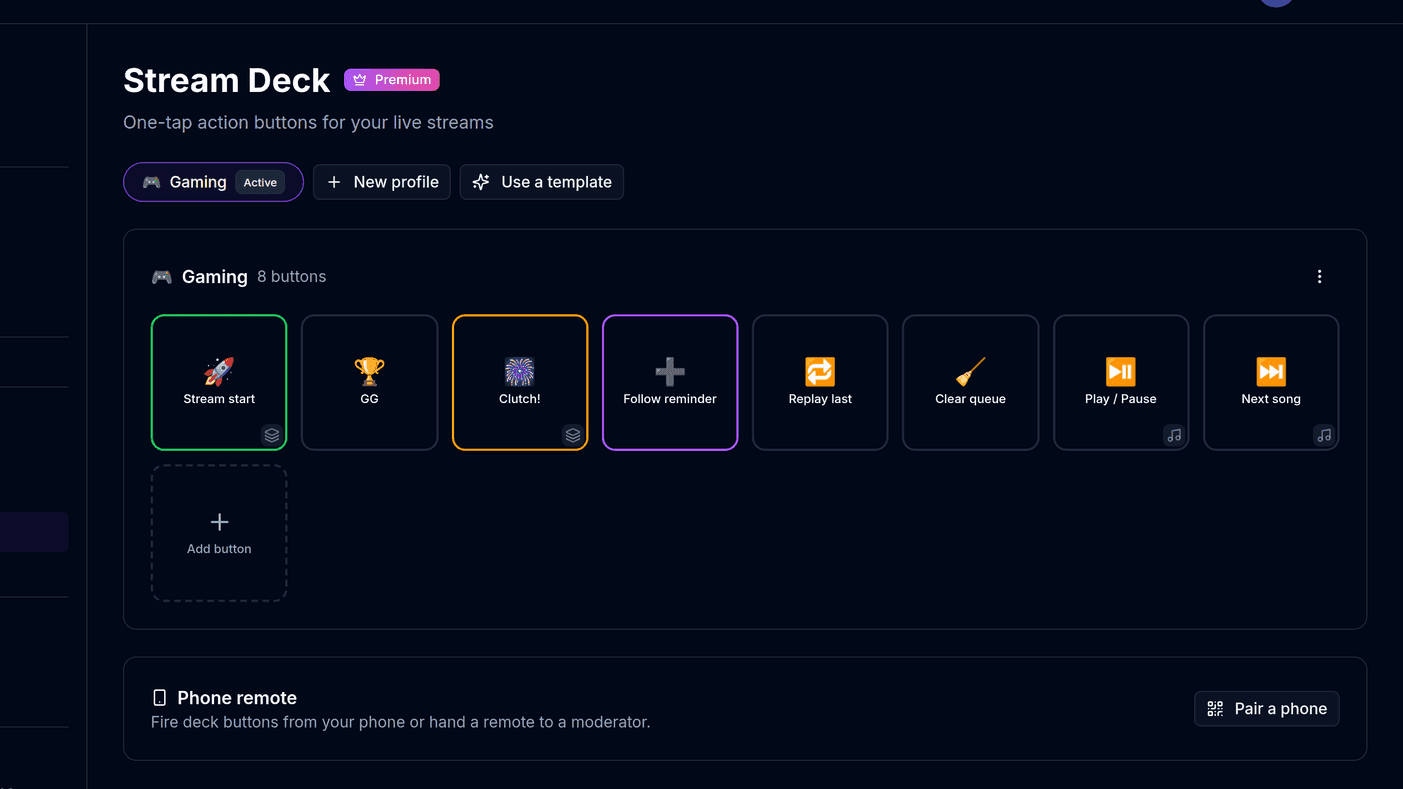
For yourself, put play/pause and skip on a Stream Deck button — or use the voice command, which is the only way to skip a track while both your hands are busy. The overlay guide covers adding the two music widgets to OBS.